How to Crop an Image on Android
Google Photos crops in four taps. Here's which save button keeps your original, why Auto frame isn't a crop, and how to hit an exact pixel size.
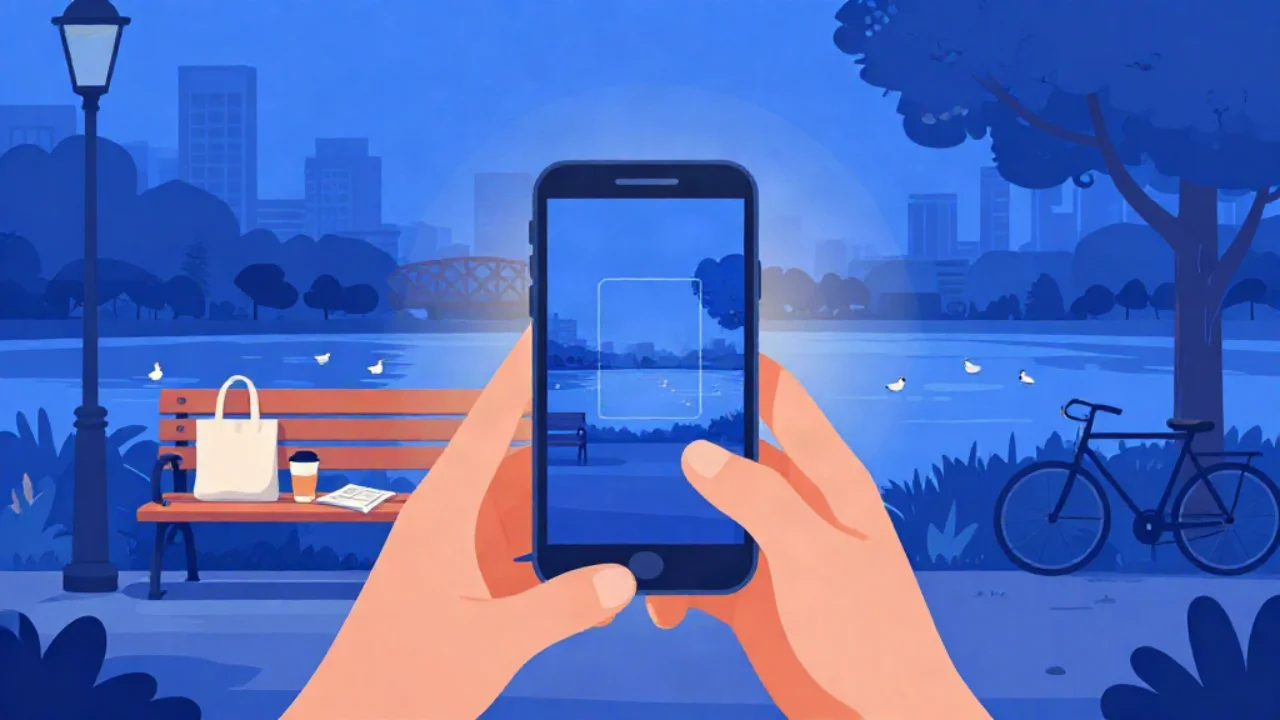
To crop an image on Android, open the photo in Google Photos, tap Edit, then Crop, drag the crop handles around the part you want to keep, and tap the checkmark, then Save. To crop to an exact size in pixels instead, Crop Image lets you type the numbers in Chrome, and the photo is never uploaded.
How to crop a photo in Google Photos
These steps come from Google's help page Edit your photos (Android tab, under "Crop or rotate a photo"):
- Open the Google Photos app and open the photo.
- At the bottom, tap Edit, then Crop.
- Touch and hold the photo, then drag the crop handles until they surround the part you want.
- Tap the checkmark, then Save.
The same Crop screen holds Straighten, Rotate, Perspective and Mirror. To crop to a fixed shape such as a square, tap Aspect ratio there, pick one, then drag the handles.
If your phone opens photos in a different gallery app, install Google Photos to follow these steps. Google says most editing features need Android 8.0 or later and at least 3 GB of RAM, and that some are only available on Pixel phones.
Save or Save as copy: which one keeps the original?
Save as copy keeps your original untouched and adds the cropped version as a new photo. Plain Save writes the crop into the original, but Google keeps it adjustable: open the photo later and tap Edit, then Revert, to get the full picture back.
There's a trade-off. Google's page says you can't undo or adjust changes to a photo you saved as a copy, so if the copy's crop is wrong, you start again from the original. And Save as copy is the only option in two cases: on Android 10 or lower, where simple edits like crop can only be saved as a copy, and for a photo in a shared album that someone else took.
Is Auto frame the same as cropping?
No. Auto frame sits in the same Crop screen, but Google describes it as using AI to fill in parts of a picture or expand it, so it can add scenery the camera never captured. A crop only removes pixels. When the picture has to show exactly what was photographed, such as a receipt or a document, use the crop handles and leave Auto frame alone.
How to crop to exact pixels on Android
Google's crop steps cover dragging handles and picking an aspect ratio, with no box for typing a width and height. When a form asks for a set size:
- Open Crop Image in Chrome, tap the drop area, and choose one photo or up to 50.
- Leave "Aspect ratio" on Free, or pick Square (1:1), Standard (4:3), Widescreen (16:9) or Photo (3:2).
- Drag the box, or type into the X, Y, W and H fields. They're pixels of your original photo, and the "Crop" line below shows the size you'll get.
- Tap Crop, then Download. Several photos come back together in one zip.
The crop is cut from the full-size photo, in your browser. A JPG comes back as a JPG and a WebP as a WebP, both saved again at quality 0.92; anything else, including a HEIC, comes back as a PNG. The new file's name ends in -cropped, and the photo in your gallery stays as it was.
With several photos, the first one's box is applied to the rest in the same proportions, so crop portrait and landscape shots in separate runs. For profile pictures, Crop to Square locks the box to 1:1 and keeps every file in a batch square.
Related guides
Cropping decides what stays; cropping a photo without wrecking it covers where to cut, and what aspect ratio is explains the presets. To make the result smaller in pixels without cutting anything, see resizing an image on Android. On other devices, see cropping on iPhone, on Windows or on a Mac.
FAQ
How do I undo a crop in Google Photos?
If you used Save, open the photo, tap Edit, then Revert. If you used Save as copy, the original is still in your library next to the copy; Google says the copy itself can't be undone.
Can I crop several photos at once on Android?
Google's steps crop one open photo at a time. In Chrome, Crop Image takes up to 50, applies the same box to each, and hands them back as a single zip download.
Will cropping make my photo worse?
Only by what you cut away: less detail is left if you enlarge the result later. A Google Photos crop saved with plain Save can still be reverted. A Crop Image download is a new file, and a JPG or WebP is re-saved at quality 0.92, a small loss; a PNG or HEIC comes back as a lossless PNG.